
Custom EDID Management 4K Fiber Extender Solution for Barco E2 & Christie Spyder Series Processors with Non‑Standard LED Walls
Live‑event and fixed‑installation projects leveraging Barco E2 Event Master and Christie Spyder video processors frequently face compatibility headaches when driving non‑standard, custom‑aspect‑ratio LED walls over long cable runs. Off‑the‑shelf fiber extenders often fail to handle custom EDID profiles, leading to black screen, wrong resolution output, HDR drop‑out, HDCP handshake failures, or intermittent signal flickering between high‑end processors and special‑form‑factor LED displays.
OPTAV OCTOPUS series 1‑LC detachable fiber extender delivers a custom EDID‑managed transmission solution purpose‑built for Barco E2 / Christie Spyder workflow. It preserves 4K@60Hz 4:4:4 18Gbps HDMI signal, supports programmable/custom‑uploadable EDID profiles, and uses industry‑standard single‑LC fiber infrastructure, resolving EDID negotiation pain points for non‑standard LED walls across rental staging, corporate events, houses of worship and large‑venue fixed installationon.
Core Industry Pain Points
- ✅Non‑standard LED Wall EDID Limitation
Custom LED walls (irregular resolution, custom pixel mapping, creative aspect ratio) do not report standard monitor EDID. Standard extenders only pass‑through raw EDID; Barco E2 and Christie Spyder may refuse to lock valid output timing, resulting in no video output or forced fallback to lower resolution.
- ✅Long‑distance copper HDMI signal degradation
Copper HDMI cables cannot cover hundreds‑meter distances for large venue deployment. Conventional MPO‑based multi‑fiber extender solutions require expensive pre‑terminated trunk cables, lack flexible on‑site EDID tuning, and introduce excess insertion loss for multi‑fiber links.
- ✅Processor‑Extender‑Display handshake instability
Barco E2 & Christie Spyder have strict HDMI timing and HDCP 2.2 verification rules. Generic fiber extenders cause EDID mis‑read during hot‑plug, power‑cycle or system re‑configuration, triggering show‑stopping signal dropouts during live productionsManualsLib.
- ✅Field service complexity for rental projects
MPO trunk cabling is non‑field‑terminable; damaged trunks require factory return. Multi‑fiber bundles increase troubleshooting overhead during tight show‑setup windows.
Custom EDID Management Function Introduction

🔹1. What is Custom EDID Management
Our 4K fiber extender series supports full independent EDID management, matching Barco E2, Christie Spyder video processors and non-standard LED wall engineering scenes. Equipped with dedicated The system supports reading, editing, storing, emulating and custom importing & exporting EDID data, and locks stable timing parameters to the transmitter hardware, so video processors can stably output custom non-standard resolutions for LED walls without on-site manual timing forced adjustment.EDID Tool debugging software, it solves industry pain points such as black screen, unrecognized display, resolution downgrade, signal flicker and EDID handshake failure caused by incomplete/invalid EDID data of LED screens.
🔹2.EDID Tool Software Core EDID Management Capabilities
Factory default state: The extender automatically reads EDID from the sink side (LED wall/display) for real-time matching, suitable for standard display devices. Classified by HDMI / DVI / DP(USB-C) interfaces, mass built-in common resolution preset EDID profiles: One-click select preset, auto-load EDID raw data, one-click write to device for permanent storage. After selecting or importing target EDID, click Key advantages for LED wall projects: EDID management cooperates with HDCP switch function to optimize signal handshake compatibility: Check real-time encryption state via 2.1 Multi-Mode EDID Copy & Emulation
Default Auto-Adaptation Mode
Built-in Fixed Preset EDID Library
User Custom EDID Import & Storage
Get Sink EDID;Get User EDID;Load EDID File;Export Current EDID.2.2 Permanent EDID Solidification & Emulation
Apply Current EDID to write data into the extender’s non-volatile memory.
2.3 HDCP Linkage Control for EDID Handshake
Set HDCP ON: Enable HDCP encryption, match encrypted video sources such as Blu-ray players;Set HDCP OFF: Disable HDCP, solve handshake failure caused by incompatible EDID on non-standard LED walls.Get HDCP Status for joint debugging of EDID + HDCP abnormal black screen.2.4 Auxiliary Debug Functions
Factory Reset: One-click restore factory default adaptive EDID mode;
🔹 3.Standard Operation Workflow of Custom EDID Management
Mode A: Use Built-in Preset EDID (Quick Deployment)
EDID Tool, click Refresh → Connect until green Connected light lights up;Apply Current EDID to solidify EDID into transmitter;
Mode B: Capture & Save Original LED Wall EDID (Custom Non-Standard Screen)
Get Sink EDID to capture native display timing data;Export Current EDID to save .bin file for backup & reuse on other project equipment;Apply Current EDID to lock the LED wall’s unique EDID to the transmitting end processor side.
Mode C: Import Offline Edited Custom EDID File
Load EDID File to select local pre-edited .bin EDID file;Apply Current EDID to finish custom EDID writing.
🔹 4. Application Scenarios of Custom EDID Management
Solve failure that processors cannot lock custom LED timings due to incomplete display EDID, avoid resolution auto-fallback to 1080P, stabilize long-distance 4K fiber transmission. Capture real sink EDID or apply matching preset EDID to repair signal recognition failure. Pre-store fixed EDID on extenders, stable signal output even when display equipment is hot-swapped or powered off. Combine EDID emulation with HDCP ON/OFF switch to fix encryption signal compatibility issues. Export standard EDID file once, batch import & write to multiple extenders for unified project configuration.
1.Non-standard LED wall matching for Barco E2 / Christie Spyder Processors
2.Black screen / Display not detected fault
3.Live performance & rental LED temporary projects
4.HDCP handshake abnormal screen flicker
5.Batch engineering deployment
🔹 5. Operation Notes
Precautions
Export Current EDID before modifying configurations to avoid invalid parameter errors;
Typical System Connection Workflow
1.HDMI output port from Barco E2 / Christie Spyder → OCTOPUS‑HH‑P01 Transmitter (TX)
2.Standard LC duplex fiber cable runs between TX and Receiver (RX) unit
3.OCTOPUS Receiver (RX) HDMI output feeds input port of LED wall receiving card / LED controller
4.Configure EDID mode:
- Scenario A: LED wall provides valid EDID → Use EDID Learn mode to capture display profile to extender TX unit
- Scenario B: Non‑standard LED wall with incomplete/missing EDID → Upload custom‑compiled EDID binary file into OCTOPUS transmitter, so Barco E2 / Christie Spyder reads this custom profile and outputs exact required video timing.
5.Barco E2 / Spyder system setup reads extender‑hosted EDID, outputs stable signal to LED wall, avoid resolution negotiation failure.
Typical Deployment Scenarios Where MPO Cannot Meet Requirements
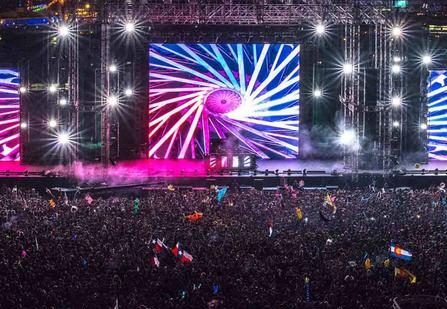

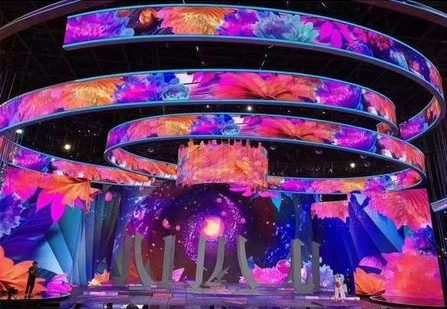
Houses of worship custom LED video‑wall installations
Museum & exhibition special‑form‑factor LED exhibits
Modern banking hall with multiple large LED digital display walls
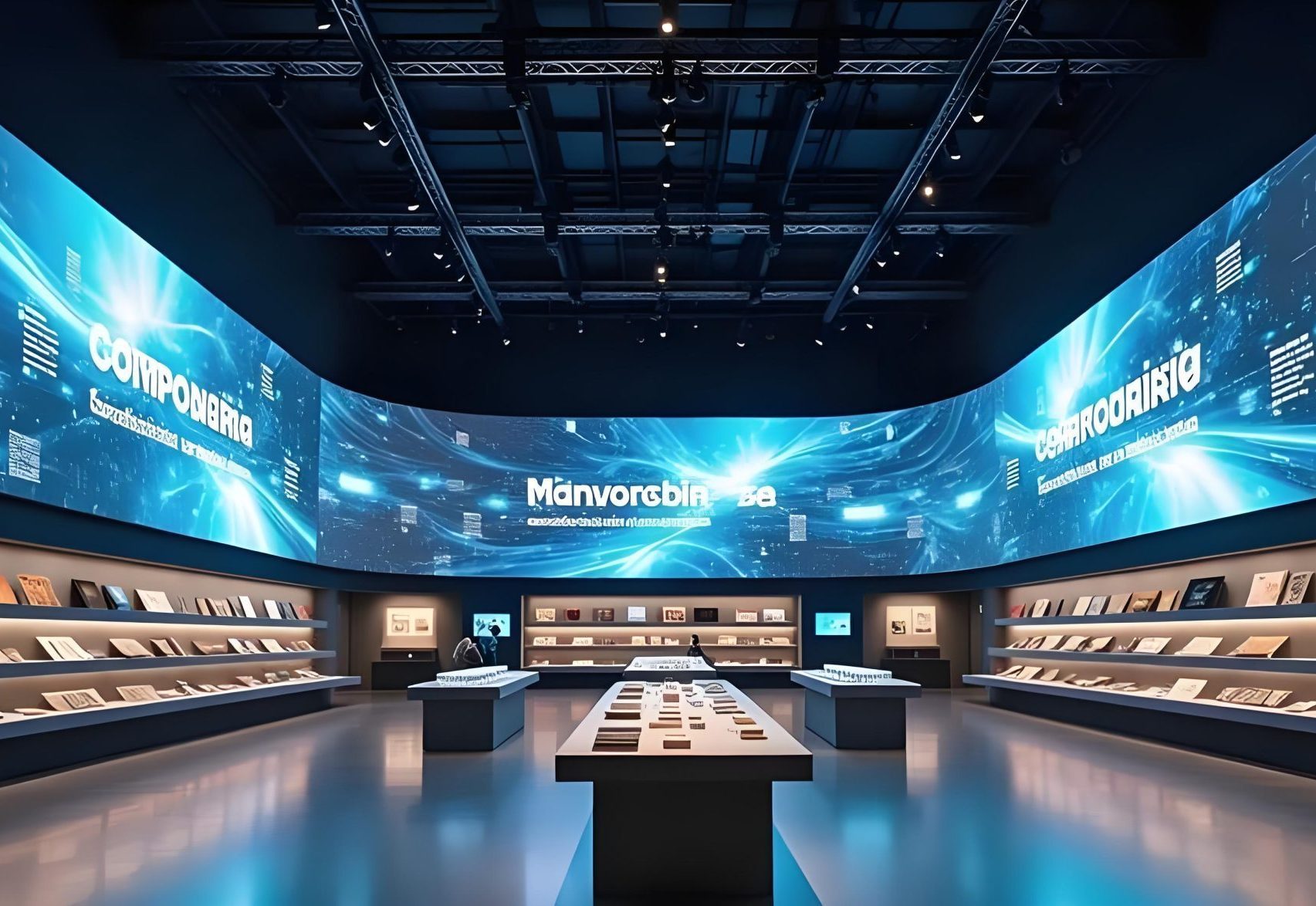
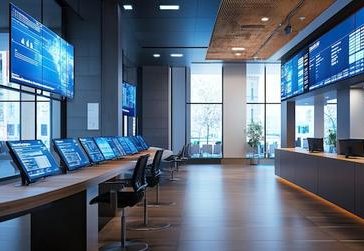
Large‑scale rental staging: concerts, festival main‑stage custom LED walls
Creative‑shape /non‑ratio LED displays
Corporate launch events
Key Benefits for System Integrators & Rental Houses
1.Eliminate live‑show risk: Custom programmable EDID resolves handshake failure between high‑end processors and non‑standard LED walls, avoids black‑screen incidents during critical events.
2.Lower project total cost: Standard LC fiber infrastructure, no expensive custom MPO trunk components; field‑service friendly for rental touring projects.
3.Maximize existing hardware investment: No firmware modification required for Barco E2 or Christie Spyder; works with original processor I/O cards.
4.Dual‑usage flexibility: Works both for fixed installation and rental staging; detachable structure enables quick swap of TX/RX units at venue site.